Overview
PayTabs is a payment gateway that allows businesses to accept secure online payments from their customers.
The integration uses PayTabs Hosted Payment Page, redirecting customers to a secure checkout page to complete their payment.
Supported features include:
-
Credit and debit card payments through PayTabs.
-
Test and Live payment environments.
-
Sale and Authorization transaction modes.
-
Multiple currencies and regional payment processing.
-
Automatic payment status verification.
-
Support for booking deposits.
Available payment methods: The payment options displayed on the PayTabs checkout page depend on your merchant account and region. Additional payment methods, such as digital wallets or local card schemes, may be available if supported and enabled by PayTabs.
1. Supported Regions
The integration supports six PayTabs processing regions. Select the region associated with your merchant account when configuring the payment method.
| Region | PayTabs Website | Merchant Dashboard |
|---|---|---|
| UAE | PayTabs UAE | Login |
| Saudi Arabia | PayTabs KSA | Login |
| Egypt | PayTabs Egypt | Login |
| Oman | PayTabs Oman | Login |
| Jordan | PayTabs Jordan | Login |
| Global | PayTabs Global | Login |
Note: The Global region does not automatically cover every country. Merchant eligibility and available services depend on PayTabs.
For more information, see PayTabs Regions and API Endpoints.
2. Get Your PayTabs API Credentials
Before configuring the integration, you need an active PayTabs merchant account.
To obtain your credentials:
-
Log in to your regional PayTabs Merchant Dashboard.
-
Navigate to Developers → API Keys → Key Management.
-
Locate your Profile ID and Server Key.
-
If necessary, generate a new API key using the + button. You can name it ETO Key or another descriptive name.
-
Copy the credentials for use in your payment settings.
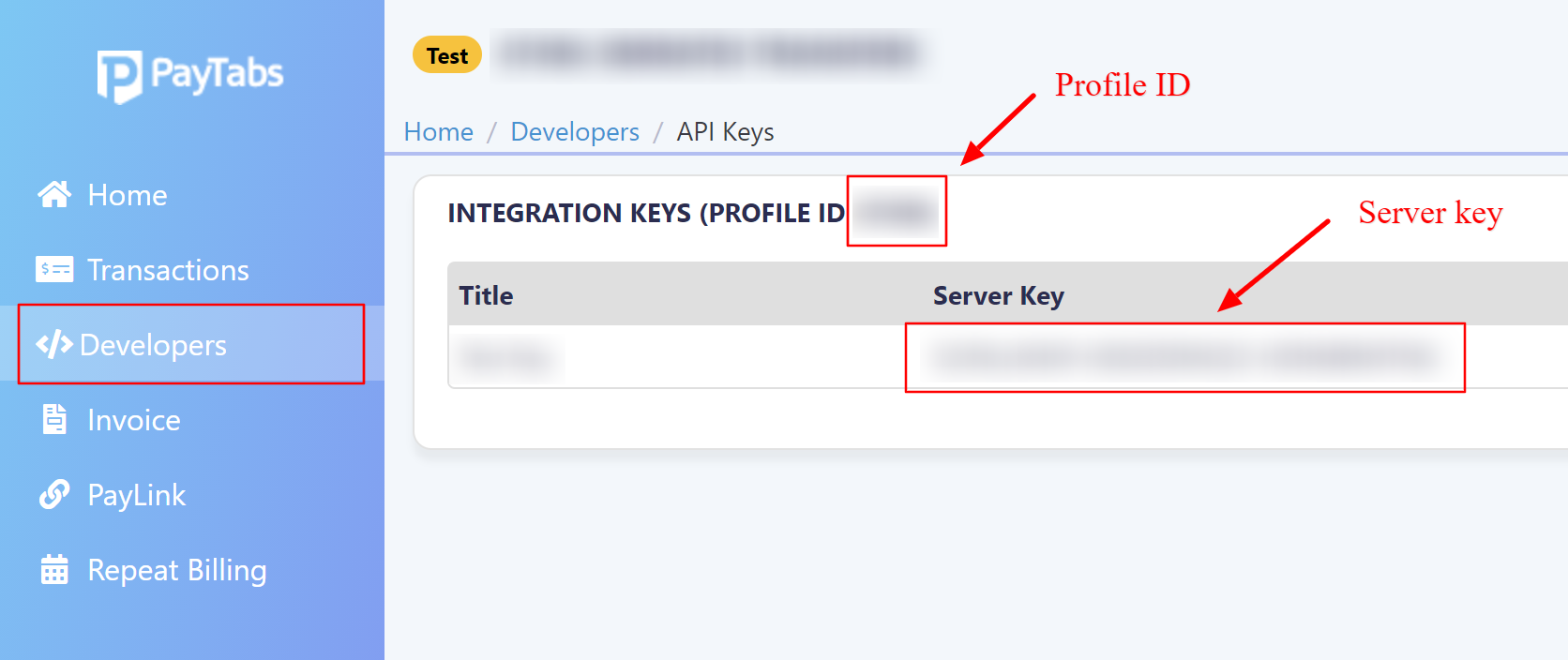
Profile ID identifies your merchant profile, while the Server Key authenticates payment requests.
PayTabs provides separate credentials for Test and Live environments. Make sure you use the appropriate credentials for your selected environment.
For more details, see How to Get Your PayTabs API Keys.
3. Configure the Payment Method
Navigate to Settings → Payment Methods, locate PayTabs, and click Edit.
Configure the following options:
| Setting | Description |
|---|---|
| Environment | Choose Test for testing or Live for real transactions. |
| Profile ID | Enter your PayTabs merchant Profile ID. |
| Server Key | Enter the Server Key corresponding to your selected environment. |
| Operation Mode | Select Sale to charge customers or Authorization to request payment authorization. |
| Region | Select the PayTabs region where your merchant account is registered. |
| Currency | Choose a payment currency supported by your PayTabs account. |
| Language Code | Leave the default automatic setting or specify a supported language code. |
| Deposit | Enable or disable the use of this method for deposit payments. |
| Active | Enable the payment method to make it available to customers. |
For standard online payments, we recommend using Sale as the Operation Mode.
Authorization requires separate management of authorized funds and is not recommended unless you have an appropriate capture process in place.
Once you have entered your settings, click Save.
4. Test Your Integration
We recommend testing the integration before accepting real payments.
-
Set Environment to Test and enter your test credentials.
-
Make sure the correct Region and Currency are selected.
-
Enable the payment method and save your settings.
-
Create a test booking and select PayTabs as the payment method.
-
Follow the payment link to open the PayTabs checkout page.
-
Complete a test transaction using the PayTabs Test Cards.
-
Verify that the payment result is reflected correctly in the booking transaction.
Once testing is complete, switch the Environment to Live and enter your live credentials to accept real payments.
5. Troubleshooting
If you experience problems with the integration, check the following:
| Issue | What to check |
|---|---|
| Payment method not displayed | Make sure it is Active and available for the selected booking. |
| Authentication error | Verify your Profile ID, Server Key, Environment, and Region. |
| Payment page does not open | Check your credentials, merchant account status, region, and currency. |
| Test payments work, but Live payments fail | Make sure your Live Profile is activated and your live credentials are correct. |
| A payment option is missing | Check which payment methods are enabled for your PayTabs merchant account. |
| Payment declined | Review the transaction in your PayTabs Merchant Dashboard for details. |
If the problem persists, contact your system's support team for integration-related assistance or PayTabs Support for merchant account and payment processing issues.
For more information about PayTabs services, supported payment options, and regional availability, visit the official PayTabs website.